Learn How to Connect RDP Hosting on Windows Server?
One of the easiest ways to work from anywhere is connecting to a Windows server using Remote Desktop. If you manage applications, handle remote teams, or run software that needs to stay online, knowing how to connect properly saves time and helps you avoid errors.
This Blog explains, in detail, how to connect to a Windows server: what you need before you log in to a Windows server and also how to keep your connection smooth and secure.
Before You Connect: What You Need Ready
To connect successfully, you should have:
- Server IP address or hostname
- username and password
- Secure Internet Connection
- Remote Desktop client (built into Windows)
The majority of the providers send these details once the hosting is activated. Keep them safe, and avoid sharing them publicly.
Step 1: Using the Built-in Remote Desktop App (Windows)
Windows already includes the tool, Remote Desktop Connection.
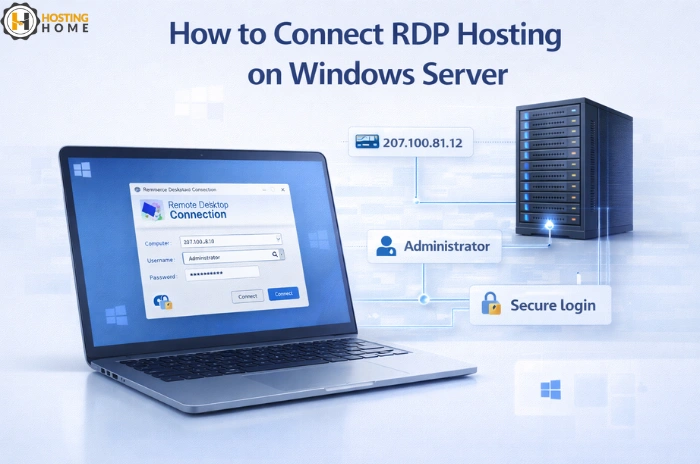
Click Start → search Remote Desktop Connection
open the app
Enter the IP of the server
Click Connect
Please enter your username and password
And you will be logged into your RDP server within seconds, if everything is right.
Step 2: First Login Security Check
On your first time log in, Windows may display a security warning. This is normal.
Confirm the connection and proceed.
After logging in, it is good practice to:
- Change the default password
- Create a strong password
- Activate basic firewall rules
These steps improve safety even on cheap RDP hosting plans.
Step 3: Connect via Mac or Mobile
You can also connect from
- Mac using Microsoft Remote Desktop – App Store
- Android / iOS via the Microsoft Remote Desktop application
Enter the same credentials and connect.
This is the flexibility which makes many users choose rdp server hosting for remote work.
Step 4: Improve Connection Speed
If the screen feels slow:
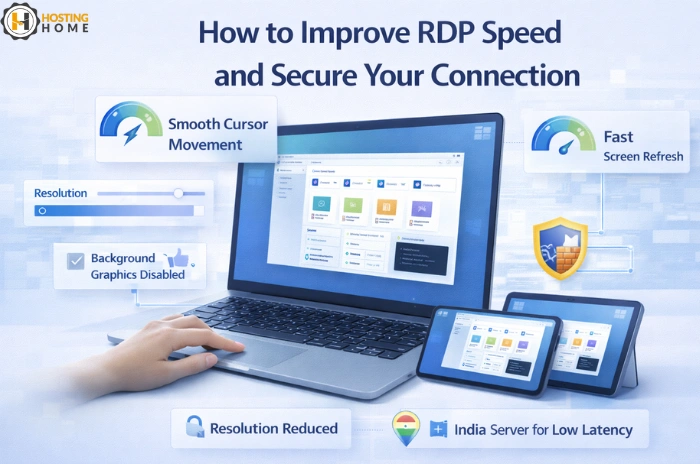
- Decrease display resolution
- Disable background images
- Close any unused applications on the server.
Choosing a nearby location, such as an Indian RDP server, also improves the loading response time for users in India.
Step 5: What About Free RDP Options?
Many users search for free RDP servers on the internet, or try to get an RDP server for free.
In most cases, these choices include :
- Temporary Demos
- Very Limited
- Shared with unknown users
- Unsafe for real work
Demos will best for testing, but for real usage it is better to Buy RDP server access from a trusted provider to make sure privacy, stability, and support.
Step 6: Understand the Pricing before Buying
rdp server price depends on:
- RAM & CPU
- Storage type – SSD is better
- Bandwidth
- Support level
Enter the same credentials and connect.
This is the flexibility which makes many users choose rdp server hosting for remote work.
Step 7: Improve Connection Speed
If the screen feels slow:
- Decrease display resolution
- Disable background images
- Close any unused applications on the server.
Choosing a nearby location, such as an Indian RDP server, also improves the loading response time for users in India.
Step 8: When to Upgrade Your RDP server hosting
Upgrade if you observe:
- Regular lag
- High CPU Usage
- Multiple users logging in
- Software running slow
At this point, a stronger plan or a Windows VPS/Dedicated Server is the right move.
Why Hosting Home is the Best Choice for RDP Hosting in India
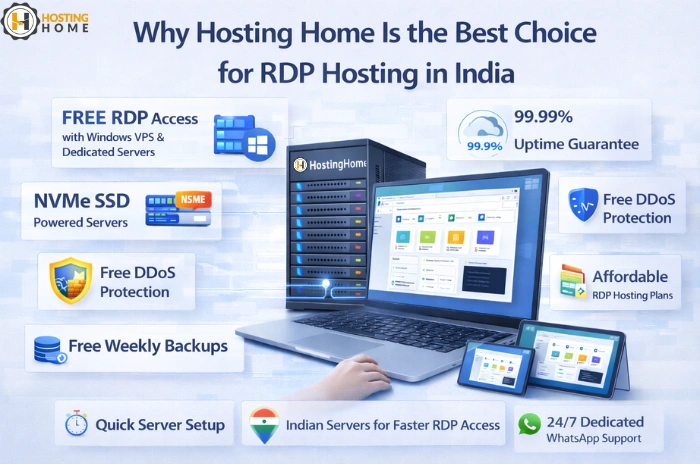
Hosting Home provides fast, secure, and reliable remote access solutions for both individual and business needs. From light usage to heavy workloads, Hosting Home provides high Speed Servers with clear pricing.
Important:
Hosting Home provides FREE RDP access with all Windows VPS & Windows Dedicated Server plans.
- Free RDP with Windows VPS & Dedicated Servers
- Lightning-fast speed with NVME SSD-powered servers
- 99.99% uptime guarantee
- Free DDoS protection
- Free weekly backups
- Quick setup
- Secure private Hosting environment
- Affordable option for Cheap RDP Hosting
- Clear and fair pricing
- 24/7 Dedicated WhatsApp support
- Local servers for faster access across India